Alt text on Shopify: what to write for your product photos
What to write for each product photo, and where it goes in Shopify. So a shopper who can't see your photos still knows what they're buying, before they add it to the cart.
- Written by Even Entry
- Published
- 6 minutes to read
- Topics: Shopify, WCAG
-
<img src="…" alt=""> -
<img src="…" alt="Fold Hoodie">
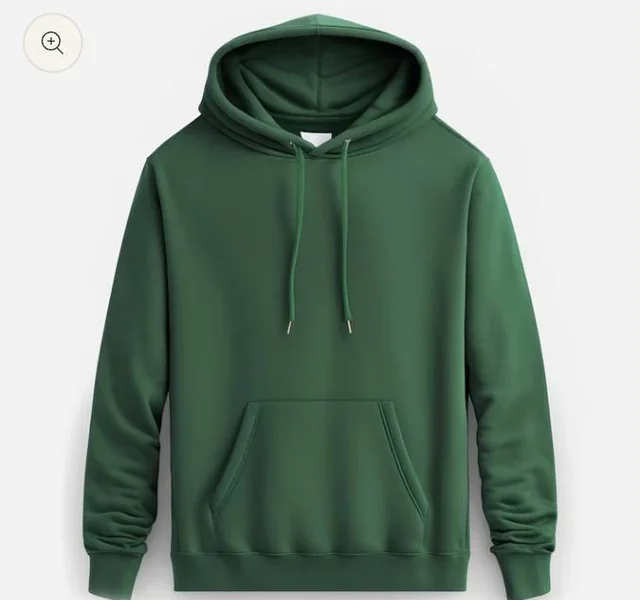
What a screen reader gets from one hoodie photo
The gallery says nothing for this photo, and the zoom view just says "Fold Hoodie".
In short
Give each product photo alt text, a short description of what’s in it. You add it in your Shopify admin. Say what a shopper would see: the color, the cut, the view. A picture that’s only there for looks, like a border, can go without.
Why bother? Some shoppers hear your photos instead of seeing them. If a photo has no alt text, they can hear nothing at all, or only the product’s name. They don’t learn the color, the cut or the view. That’s a hard way to shop.
Which of your pictures need alt text
Alt text is the words a screen reader says in place of a picture. It helps when a photo can’t load, too: Shopify says it “is shown instead”.
W3C’s Web Content Accessibility Guidelines (WCAG) 2.2 open with a rule about pictures, 1.1.1 Non-text Content, Level A. It asks that a picture has “a text alternative that serves the equivalent purpose”. One exception is decoration. A picture that’s there only for looks is marked so screen readers skip it.
The page on decorative images in their tutorial lists kinds you might come across. A border is one. A picture that only illustrates the words beside it is another. Whether a picture is decoration, the same page says, “is a judgment that only the author can make”. On your store, that’s you.
Their Images Tutorial shows this with a bird photo. On a parks site, the bird’s exact type and look might not matter much. But on a site about birds, the tutorial says, a fuller description “may be appropriate”. We’d say your store is the bird website. A product photo is information, not decoration: it shows what the shopper is choosing.
What to write for a product photo
W3C’s tutorial asks for “at least a short description conveying the essential information presented by the image.” Its page on informative images has a photo of a dog wearing a bell, beside text on why guide dogs wear one. The photo’s alt text is “Dog with a bell attached to its collar.” The text already says why. The alt text says what you’d see.
Our rule for a product photo: say what it shows that the words beside it don’t. Here’s alt text for the first photo of the Fold Hoodie, from our test store:
Fold Hoodie in Pine, a dark green, from the front: hood, two drawstrings, front pocket, ribbed cuffs and hem.
Put the color in plain words beside its name. A color name like Pine or Dusk doesn’t tell a shopper who can’t see the photo what color it is. Say the view, too: front, back or close-up. Leave out what the product’s text already says, like how soft it is inside.
Don’t paste in the file name or placeholder text. The page that explains the picture rule counts those as failures, text alternatives “that are not alternatives”. In our view, the product’s name alone falls short too. It doesn’t say what the photo shows.
How long? Shopify’s page on adding alt text says “Keep your alt text brief and descriptive.” It allows 512 characters but recommends 125 or less. That’s about one sentence.
Where it goes in Shopify
On a computer, Shopify’s Help Center gives these steps:
- In your Shopify admin, go to Products.
- Click the product’s name.
- Click a photo to open its preview.
- Click “Add alt text”.
- Type your alt text and click “Save alt text”.
- Close the preview with the X.
Shopify’s media editor “might suggest alt text” for photos that have none. You can take it, change it or write your own. Shopify saves a suggestion as soon as you accept it, so first check the words match the photo.
Lots of photos? Shopify’s product CSV, a spreadsheet file you can upload, has an “Image alt text” column.
A picture you added in the theme editor, like a banner, gets its alt text there. Go to Online Store and click Edit theme. Find the section with the picture, click Edit on the picture, then type your alt text and save.
What a shopper hears when a photo has no alt text
Your theme still decides what a screen reader says for each photo. Whatever it writes is what a shopper hears. If your theme fills the gap for you, a product page can sound like this:
- In the gallery, every photo gets empty alt text. That tells a screen reader the photo is decoration. So the screen reader skips every one.
- In the zoom view, every photo is named after the product. The shopper hears “Fold Hoodie”, then “Fold Hoodie” again, and never the color or the view.
- On the cards for other products, like “You may also like”, each photo is named after its product.
A page checker, software that tests a page for problems, may not flag any of this. We think that’s because, to a checker, empty alt text looks just like a picture marked as decoration.
Your Shopify admin shows the alt text you’ve saved for each photo, whatever the page says. That’s where you’ll see which photos have none.
Your alt text doesn’t follow the photo everywhere
Your theme can use the alt text you saved for each photo. But the same photo can turn up somewhere else. Say a reviews app shows it again in its write-a-review window. That app doesn’t have to use your words. It can name the photo after the product instead.
So your alt text only shows up where the theme or the app chooses to use it. From your store, you can’t tell where other words for a photo come from. Whoever makes the theme or app can tell you.
What you can do this week
- Open your best-selling product in your Shopify admin, and click its photos to look for “Add alt text”.
- Write alt text for each of that product’s photos: the color in plain words beside its name, the cut and the view.
- If Shopify suggests alt text, check it matches the photo before you accept it.
- Got lots of products? Fill in the “Image alt text” column in Shopify’s product CSV.
- Check where else the photo shows up, like the zoom view, product cards or a reviews app. Wherever it shows other words, ask whoever made that theme or app.
Sources
- W3C, Web Content Accessibility Guidelines (WCAG) 2.2, W3C Recommendation December 12, 2024, 1.1.1 Non-text Content, read October 24, 2026
- W3C WAI, Understanding Success Criterion 1.1.1: Non-text Content, updated September 6, 2026, read October 24, 2026
- W3C WAI, Images Tutorial, updated April 8, 2026, read October 24, 2026
- W3C WAI, Images Tutorial: Decorative Images, updated July 27, 2019, read October 24, 2026
- W3C WAI, Images Tutorial: Informative Images, updated June 17, 2019, read October 24, 2026
- Shopify Help Center, Adding alt text to media, read October 24, 2026
- Shopify Help Center, Using the media editor, read October 24, 2026
- Shopify Help Center, Using CSV files to import and export products, read October 24, 2026
- Shopify Help Center, Adding alternative text to your theme images, read October 24, 2026
Each source shows the day we last read it, and things can change after that. This post is general information for any store, not legal advice for yours, and it can't take the place of a lawyer.
More posts
-
Published
What accessibility overlays and widgets can't fix on your store
A widget or overlay changes your pages in each shopper's browser. Here's where that falls short, who says so, and what to do instead.
-
Published
Keyboard accessibility on Shopify: what gets in the way, and how to check
Can a shopper who uses only a keyboard buy from your Shopify store? Here's what gets in the way, who fixes it, and how to check.
-
Published
How to write an accessibility statement: what goes in, what to leave out
Here's what to put in your accessibility statement, which four words to cut unless you can prove them, and how often to update it.