Keyboard accessibility on Shopify: what gets in the way, and how to check
Can a shopper who uses only a keyboard buy from your Shopify store? Here's what gets in the way, who fixes it, and how to check.
- Written by Even Entry
- Published
- 5 minutes to read
- Topics: Keyboard, Shopify, Apps

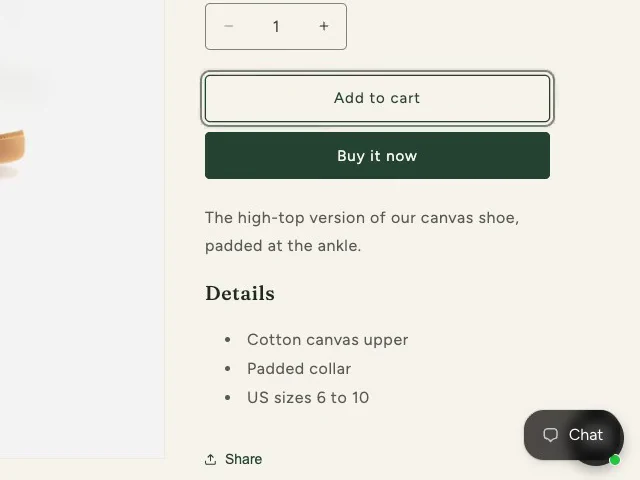
Adding a shoe to the cart with only a keyboard
See the dark outline? Every stop on your store should show one.
In short
To find out if someone can shop your Shopify store without a mouse, put the mouse away and walk it from the homepage to checkout.
Press Tab to move, and watch where you land. Watch for anything that stops you, like a pop-up you can’t close, a menu that won’t open, or nothing showing where you are. Each one has someone who can fix it: your theme’s maker, the app’s maker or Shopify.
Why does the keyboard matter to your shoppers?
Not every shopper uses a mouse. Some people who are blind, and some with limited movement, rely on the keyboard instead.
On a keyboard, you move with Tab. Each press takes you to the next link, button or field. Wherever you’ve landed has focus, and that’s the word we’ll use from here on.
W3C, the group that writes the web’s accessibility rules, publishes them as the Web Content Accessibility Guidelines (WCAG). Two of those rules matter most here.
The first, 2.1.1 Keyboard, means anything a shopper can do on your store, they can do with a keyboard. Browsing, choosing, paying: all of it.
The second, 2.4.7 Focus Visible, means you can always see where focus is. W3C puts the reason plainly: “Without a focus indicator, sighted keyboard users cannot operate the page.”
What gets in your way on the homepage?
If a pop-up opens when you land, like a sign-up form, focus should move inside it. Your next stop is its first field. You should be able to close it from the keyboard, too, and be right back on the page.
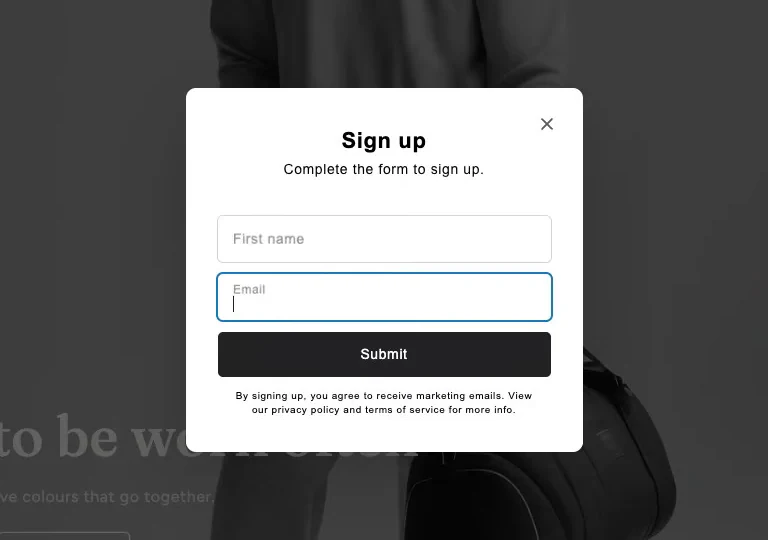
Once you’re past any pop-up, your first stop on a well-built page is a link called “Skip to content.” It jumps you past the header, which repeats on every page, straight to what you came for. Shopify’s free Dawn theme has one.
If your store has chat buttons, each one is an extra stop before you reach your logo and menus. Notice how many there are.
Then try the menus in your header. Each one should open from the keyboard, and when you close it, you should be back on its button.
Watch for small things that show nothing when they have focus. A sign-up teaser left in a corner is one. A sort list in a reviews app is another. You press Tab and nothing on screen changes, so you’ve lost your place. That’s the second rule: you should always be able to see where you are.

Can you choose a size, add to cart and check out?
On a product page, you should be able to pick a size and add it to your cart without the mouse. Whatever your cart does next, you should be able to reach Check out. Anything that opens over the page should work just like the pop-up.
Shopify’s own report on its checkout, from March 2026, says it only partly meets 13 WCAG criteria. Shopify says it’s still working on them, including the order a keyboard moves through the page. So walk through your own checkout by keyboard. Tab should reach every field and the button that pays. The card fields sit in a sealed-off frame of their own, for security, so check that you can get into them.
Who fixes what you find?
- Your theme: your developer, or whoever made the theme.
- An app: its maker. Some apps let you change or turn off the part that’s in the way. Shopify Forms, for one, lets you set its teaser to never show. Otherwise, the app’s maker is the one to tell.
- Shopify’s checkout: Shopify. No store can edit its code. Write to Shopify at accessibility@shopify.com.
What doesn’t a keyboard walk tell you?
A computer is the easiest place to start. This walk doesn’t cover phones or tablets, though a keyboard works with those too.
It isn’t a screen reader test, either. A screen reader says the page out loud, and that’s a different check.
How can you check your own store this week?
First, your browser. In Chrome, it just works: Tab reaches links with nothing to set up.
In Safari on a Mac, Tab stops only at form fields and pop-up menus out of the box. It skips links and buttons. Two settings change that:
- In Safari, open Settings, then Advanced, and turn on “Press Tab to highlight each item on a webpage”.
- In your Mac’s System Settings, under Keyboard, turn on “Keyboard navigation”. Without it, Apple says, Tab in Safari skips buttons like Add to cart and Check out.
Rather not change anything? Option-Tab in Safari reaches links too.
Then walk your store:
- Open your homepage and press Tab. Shift-Tab takes you back a stop. At every stop, ask one question: can you see where you are?
- If a pop-up opens, press Escape. It closes, and your next stop is “Skip to content,” if your theme has one.
- At each menu in your header, press Enter. It opens, Tab moves you through it, and Escape closes it and puts you back on its button.
- On a product page, Tab into the sizes and use the arrow keys to pick one. Tab again moves you on.
- On Add to cart, press Enter or Space. The cart’s count goes up, and from the cart you can Tab to Check out.
For the checkout itself, follow the try-it-yourself steps in our checkout guide. Then pass on what you find.
Sources
- W3C, Web Content Accessibility Guidelines (WCAG) 2.2, W3C Recommendation December 12, 2024, read October 18, 2026
- W3C WAI, Understanding Success Criterion 2.1.1: Keyboard, read October 18, 2026
- W3C WAI, Understanding Success Criterion 2.4.7: Focus Visible, read October 18, 2026
- W3C WAI, Understanding Success Criterion 2.4.1: Bypass Blocks, read October 18, 2026
- W3C WAI, ARIA Authoring Practices Guide, dialog (modal) pattern, read October 18, 2026
- W3C WAI, ARIA Authoring Practices Guide, button pattern, read October 22, 2026
- W3C WAI, ARIA Authoring Practices Guide, link pattern, read October 22, 2026
- W3C WAI, ARIA Authoring Practices Guide, radio group pattern, read October 22, 2026
- Apple, Safari User Guide, Keyboard shortcuts and gestures in Safari on Mac, read October 18, 2026
- Apple, Safari User Guide, Change Advanced settings in Safari on Mac, read October 18, 2026
- Apple, Mac User Guide, Keyboard settings on Mac, read October 18, 2026
- Shopify Help Center, Shopify Forms popup form settings, read October 18, 2026
- Shopify, Accessibility Conformance Report, WCAG edition: Shopify Checkout, March 2026, read October 18, 2026
- Shopify Partners blog, how Shopify's checkout runs its payment form in a sandbox (2025), read October 18, 2026
Each source shows the day we last read it, and things can change after that. This post is general information for any store, not legal advice for yours, and it can't take the place of a lawyer.
More posts
-
Published
What accessibility overlays and widgets can't fix on your store
A widget or overlay changes your pages in each shopper's browser. Here's where that falls short, who says so, and what to do instead.
-
Published
How to write an accessibility statement: what goes in, what to leave out
Here's what to put in your accessibility statement, which four words to cut unless you can prove them, and how often to update it.
-
Published
WCAG 2.2 target size on Shopify: where small buttons hide and who fixes them
Where small buttons hide on your Shopify store, from chat buttons to pop-up close buttons and checkout icons. And who fixes each: you, an app's maker, or Shopify.