What a free website accessibility checker finds on your Shopify store, and misses
A free accessibility checker catches faint text and missing photo descriptions on your Shopify store. Here's what it misses, and what to check yourself.
- Written by Even Entry
- Published
- 4 minutes to read
- Topics: WCAG, Shopify, Keyboard
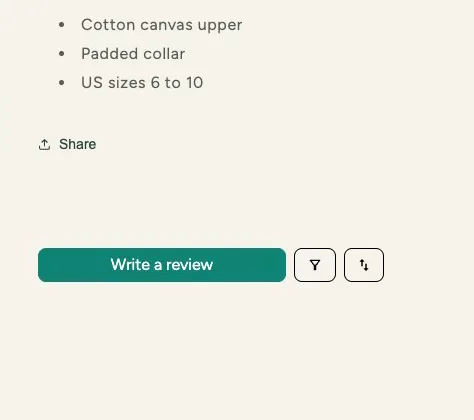
Where's the keyboard on this page?
It's on the sort button. Nothing on screen shows it. We drew the ring.
In short
A free accessibility checker finds some problems on your Shopify store, and misses others. Its score covers only the tests it could run. Only a person can check some things, like seeing where you are as you press Tab, or whether a photo’s description fits. The post ends with five checks you can do by hand this week.
What does a checker’s score tell you?
A checker is software that tests your pages against a set of rules. W3C writes the Web Content Accessibility Guidelines (WCAG). Its guide to choosing evaluation tools says tools “can provide fully-automated checks, and help you with manual review.”
Lighthouse is a free checker from Google that’s already in the Chrome browser, in its developer tools. Each of its tests passes or fails, and the score is built from those. The checks it leaves to a person don’t count: “Manual audits … don’t affect your score.”
So a good score means the tests it could run passed. It says nothing about what it left to you.
Can a free ADA compliance checker tell you you’re done?
The answer is no. Not from a free checker, and not from a paid one either.
Whatever a checker calls itself, even an Americans with Disabilities Act (ADA) checker, it runs only the tests it can. Some things need a person to look. W3C puts it simply: “no tool alone can determine if a site meets accessibility standards.”
A checker is still worth running. What it finds is worth fixing.
What can a checker catch for you?
A checker is good at problems a rule can spot. Here are a few you’d recognize on a Shopify store.
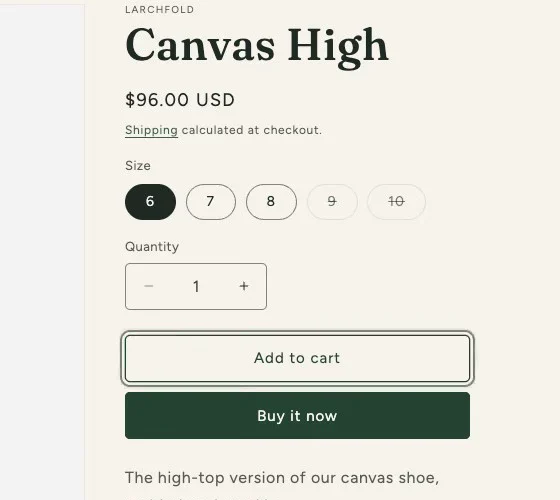
- Faint text. Text should be dark enough to read easily. 1.4.3 Contrast (Minimum) asks for “at least 4.5:1” between text and its background. Faint gray can hide in small places: sold-out sizes, review dates, the labels in a sign-up pop-up.
- A button inside a button. Think of a sign-up teaser in the corner with its own close button inside. A screen reader may announce it wrongly. A keyboard shopper may skip right past it.
- Buttons too small to tap, or one covering another. A checker that tests target size will flag these. More in our post on target size.
- A photo with no description at all.
Some problems only show on one kind of page. Sold-out sizes and review dates live on product pages. A pop-up may open only on your homepage. Check just one page and you’d miss the rest.
What does a checker leave for you to decide?
Some checkers also give you a second list: things they couldn’t decide. Each one needs a person to look. Two kinds you might see:
- Words on a photo. A checker often can’t work out the color behind words laid over a picture. So it can’t measure them. You can look and decide in a few seconds.
- Very short text. A label as short as a size like “9” can be too short for a checker to judge, so it may leave it for you.

What can’t a checker see?
Where you are when you press Tab. Each press of Tab moves you to the next link, button or field. That spot is called focus. 2.4.7 Focus Visible asks that you can see it. Only looking tells you whether you can. Our post on shopping your store by keyboard only walks you through it.
Whether a description fits its photo. Alt text is the description a screen reader reads out in place of a picture. A checker can tell you it’s there. It can’t tell you it’s right. W3C is clear: to know if it fits, “you need to see the image and judge it in context.” More in our post on writing alt text for your Shopify photos.
An empty description. Blank alt text tells screen readers to skip a picture as decoration, so a checker passes it. A shopper who can’t see that photo hears nothing about it. Some themes leave a product photo blank when nobody has written alt text for it. A checker can’t tell a blank left by mistake from one chosen on purpose.
What can you check by hand this week?
- Run Lighthouse on your homepage and on one product page.
- If your checker gives a second list, look at each item yourself.
- On a product page, press Tab from the top. Can you always see where you are, in a sensible order, without getting stuck?
- Make your browser window narrow. Check the page still works without scrolling sideways.
- In your Shopify admin, go to Products, open a product and click a photo. Read its alt text: does it fit the photo, or is it blank?
Sources
- W3C WAI, Selecting Web Accessibility Evaluation Tools, updated May 13, 2024, read October 24, 2026
- W3C WAI, Evaluating Web Accessibility Overview, updated August 12, 2026, read October 24, 2026
- W3C WAI, Easy Checks, A First Review of Web Accessibility, updated August 9, 2023, read October 24, 2026
- W3C, Web Content Accessibility Guidelines (WCAG) 2.2, W3C Recommendation December 12, 2024, read October 24, 2026
- W3C WAI, Understanding Success Criterion 1.4.3: Contrast (Minimum), updated September 6, 2026, read October 24, 2026
- W3C WAI, Images Tutorial, Decorative Images, updated July 27, 2019, read October 24, 2026
- Chrome for Developers, Introduction to Lighthouse, updated June 2, 2025, read October 24, 2026
- Chrome for Developers, Lighthouse accessibility score, updated October 22, 2025, read October 24, 2026
- Chrome for Developers, Interactive controls are keyboard focusable, May 2, 2019, read October 24, 2026
- Shopify Help Center, Adding alt text to media, read October 24, 2026
Each source shows the day we last read it, and things can change after that. This post is general information for any store, not legal advice for yours, and it can't take the place of a lawyer.
More posts
-
Published
What accessibility overlays and widgets can't fix on your store
A widget or overlay changes your pages in each shopper's browser. Here's where that falls short, who says so, and what to do instead.
-
Published
Keyboard accessibility on Shopify: what gets in the way, and how to check
Can a shopper who uses only a keyboard buy from your Shopify store? Here's what gets in the way, who fixes it, and how to check.
-
Published
How to write an accessibility statement: what goes in, what to leave out
Here's what to put in your accessibility statement, which four words to cut unless you can prove them, and how often to update it.